
This guide is intended for CRM users and Zendesk agents. If you are an admin looking to install Fanatically Zen, please review our installation guide.
After your CRM admin has installed the Fanatically Zen integration, you will see the integration in your CRM and Zendesk. Review what you'll see in each app below:
Zendesk Agent
Zendesk App
Zendesk agents will now see data from the CRM. This data appears as an app in the Zendesk sidebar. This can be found by clicking the Apps  icon along the right-hand side of a Zendesk ticket. (If this icon doesn't appear for you, you may be using the older agent view. Simply click the Apps button in the top-right corner)

By default, you will see information from your CRM for the contact, the related account, and any related opportunities. Fanatically Zen uses the email address of the Zendesk requester to identify matching records from the CRM to display within the app.
The Fanatically Zen app will also appear in the sidebars users and organizations. These views can be customized by your admin, so you may see more or less than the default data depending on the customizations that have been put into place.
Zendesk Sync
Data from Zendesk can also be synced to your CRM depending on the preferences set by your admin. If enabled, the integration syncs the following:

If you have questions on if data is being synced or what specifically is syncing to your CRM, please reach out to your admin.
Sugar or SuiteCRM Users
SugarCRM Dashlets
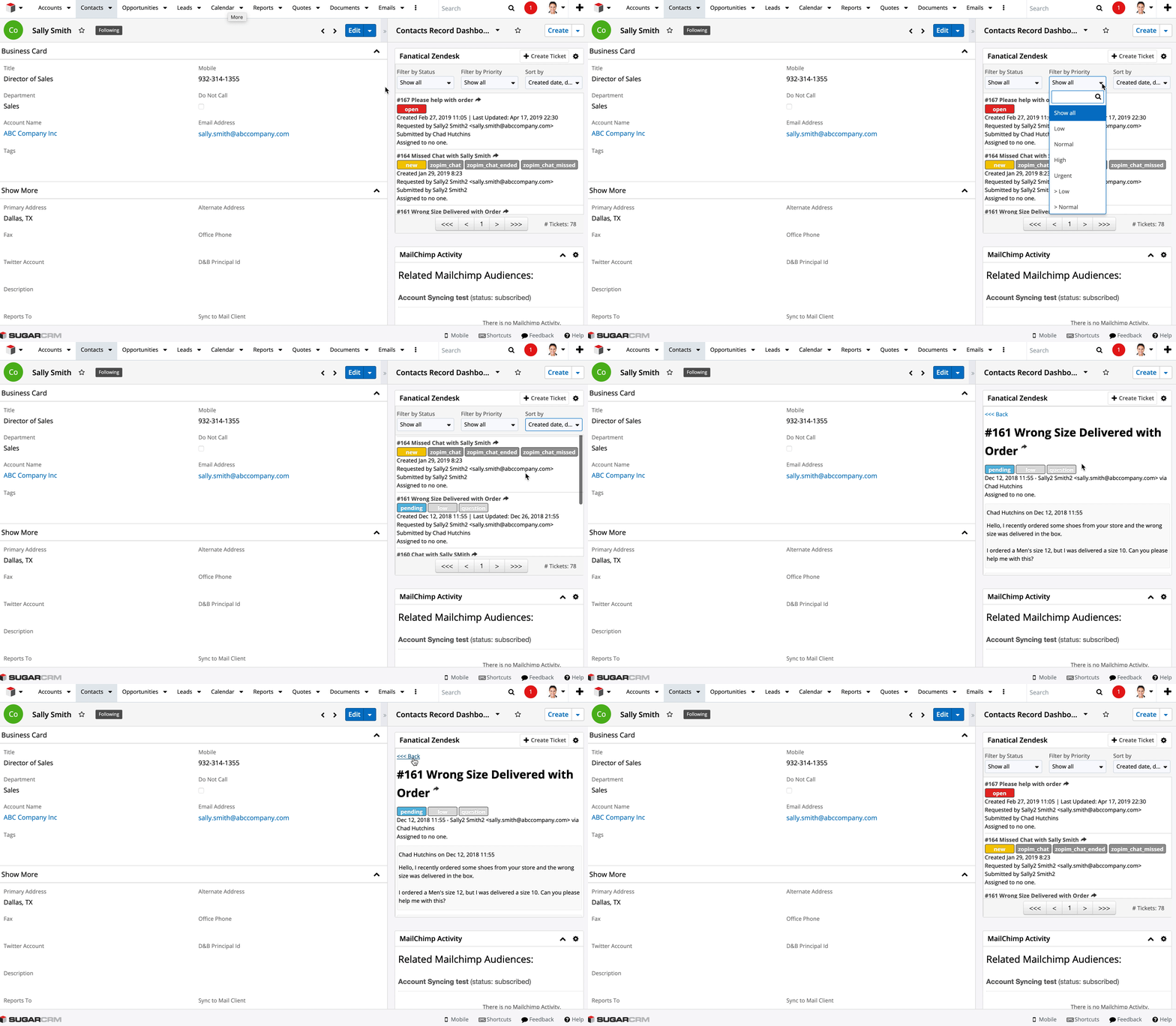
Tickets from Zendesk can be seen within the Sugar dashlet. If you do not see the Sugar dashlet, you can add it using the steps below:
- From within Sugar, navigate to a specific record view mentioned above.
- Click the blue circle in the bottom right of the page.
 (Note: for SugarCRM 9 and below, you'll use the Actions drop-down within the side pane.)
 - Select Fanatical Zendesk and click Save.
The dashlet can be added at the contact, target, lead, case, account, or opportunity level. If you are on the Professional or Ultimate plan of Fanatically Zen, click on the ticket subject to expand the ticket and view individual ticket details, as shown below:
SuiteCRM
SuiteCRM users have access to Zendesk information for records without any extra steps. To see this data, navigate to a contact and scroll down the page directly beneath the contact information. See how this looks in SuiteCRM below:

If you have any questions on the Fanatically Zen integration, please reach out to our support team at zendesk@fanaticallabs.com.
Comments
0 comments
Please sign in to leave a comment.