

In order to use Fanatically Zen with Zendesk Chat, you'll need to complete a few extra steps to enable the app to work as desired. If you have installed the app through the Zendesk Marketplace, you may see an error such as the one to the right is the app is not enabled properly.
Please follow the steps below to configure Fanatically Zen for Zendesk Chat:
- Confirm you are on the latest version of the integration. You should be on version 2.6.2 or later. You can see this within the Module Loader of the CRM.
- Next, install the Zendesk chat app from the Zendesk Marketplace. Choose the link below based on which CRM you are integrating with:
SugarCRM: https://www.zendesk.com/apps/chat/fanatically-zen-with-sugarcrm-and-zendesk
SuiteCRM: https://www.zendesk.com/apps/chat/fanatically-zen-with-suitecrm-and-zendesk
Follow the steps to install the integration. Note: you will click 3 "install" buttons in the process. - Navigate to your CRM and to the Admin page. Scroll to the bottom of the page and click Zendesk Configuration. Click on Connect (Step 3) and click the big Zendesk image. This may take a few moments to configure your settings.
- When connected, you'll be redirected to Sugar. At this point, navigate back to Zendesk chat and refresh the page. (Note: It may say "changes you made may not be saved". That is OK, click reload anyways.)
- Now go to a Zendesk chat and see if you are able to see CRM data within Zendesk Chat.
You will know everything is set up correctly if you see something similar to one of these screenshots:
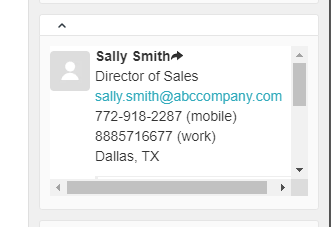
This image shows a successful match with a contact in CRM, and CRM data is displayed for the person chatting.
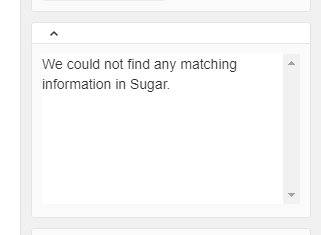 This image shows what you will see if the integration is properly installed, but there is no matching data in your CRM. This is usually because there is no match in CRM found for the email address for the person chatting.
Comments
0 comments
Please sign in to leave a comment.